

Slow Proxmox Restores: 8 Bottlenecks to Check
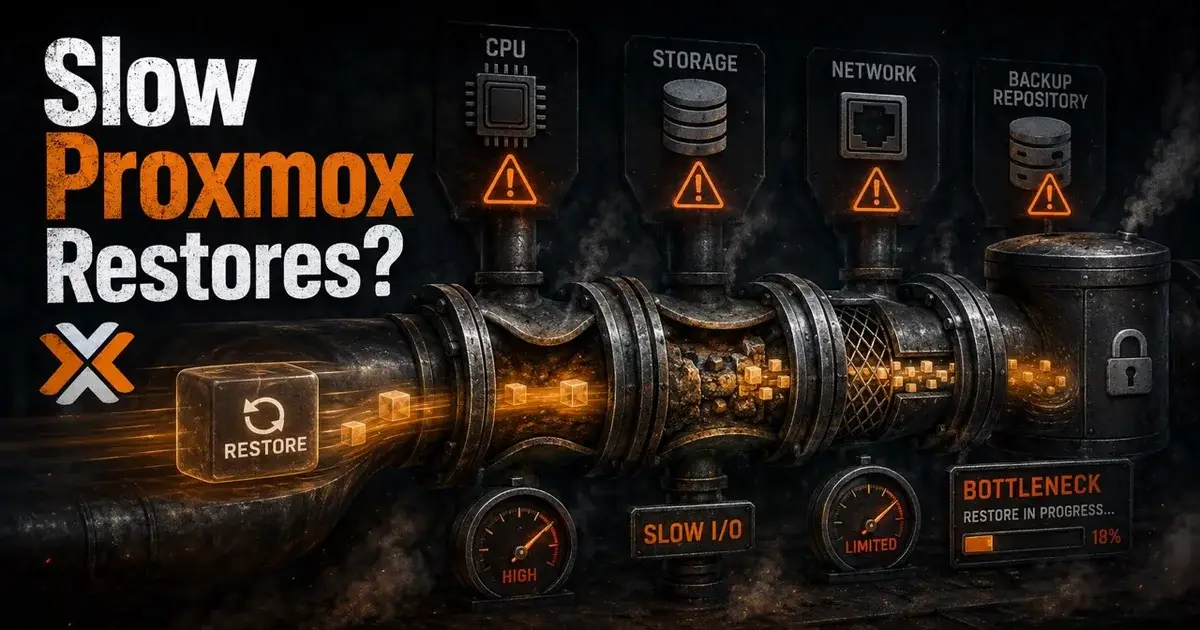
A slow Proxmox restore is usually a pipeline problem that no single Proxmox setting will fix. The effective restore rate is limited by the slowest stage between the backup repository, the backup worker, the network and the target Proxmox storage.
Measure those stages before changing MTU, adding NICs or blaming the hypervisor. A 25 GbE link does not guarantee a 25 GbE restore if one CPU core, a deduplication repository or the target datastore is already saturated.
This guide was prompted by a Veeam R&D forum report in August 2026 where a Proxmox restore was around 500 Mbps despite dual 25 GbE links and fast NVMe storage. That is one operator report and should not be read as a universal Veeam limit. The troubleshooting method below uses Veeam's current Proxmox worker documentation and Proxmox storage guidance instead of assuming the forum case has one magic fix.
What should you measure before troubleshooting?
Measure repository read throughput, worker CPU, worker RAM, network throughput and target storage write latency at the same time. A restore speed number by itself does not identify the bottleneck.
Write down five values during a representative restore:
- Restore throughput reported by the backup job.
- CPU usage per core on the worker and backup server.
- Network throughput on the worker and Proxmox host.
- Read throughput and latency on the backup repository.
- Write throughput and latency on the target storage.
Do the same test with one large VM before testing multiple concurrent restores, because concurrency can hide the behavior of a single data path.
If you are still deciding how to protect the environment, the Proxmox backup guide compares the main approaches before you optimize restore performance.
1. Is the Veeam Proxmox worker CPU bound?
The worker is the first place I would look when network capacity is high but restore throughput is unexpectedly low. Veeam says Proxmox workers process backup workloads and distribute backup traffic between the virtual environment and repositories.
The documented default worker size is 6 vCPU, 6 GB RAM and 100 GB of disk. A default worker can handle up to 4 concurrent backup and restore tasks.
Six vCPUs will not necessarily be evenly busy during every restore, so look at per core utilization. One saturated vCPU with the other cores mostly idle is a different problem from all six cores running at 80 percent.
If CPU is the ceiling, collect the job logs and worker metrics before changing undocumented settings. Veeam specifically warns against manually changing worker VMs in the Proxmox interface and directs administrators to edit worker settings through Veeam.
So check whether worker CPU plateaus at the same moment throughput does.
2. Are concurrent task limits creating contention?
More tasks do not automatically mean more aggregate throughput, and they can make storage latency, CPU contention and network queueing worse.
Veeam documents a default maximum of 4 concurrent backup and restore tasks per worker. For each additional task, its sizing guidance calls for another 1 vCPU and 1 GB RAM.
Run two tests: first restore one VM, then restore multiple VMs. If one VM restores at 800 Mbps and four VMs together still produce roughly 800 Mbps, a shared resource is probably saturated. If aggregate throughput scales significantly, the single task path may be the limiting factor.
Also check the repository side, since a backup repository has its own concurrency and resource limits. A beautifully sized Proxmox worker cannot read data faster than the repository can serve it.
3. Is the backup repository the real bottleneck?
A repository can be slow even when its disks look fast on paper. Deduplication, compression, object retrieval, cache behavior, fragmentation and concurrent jobs can all change restore performance.
Test the repository separately from Proxmox if your backup software gives you a supported way to do so. Look at physical read throughput, latency and CPU on the repository during the restore window.
Backup reads behave differently from sequential benchmarking with a synthetic tool, because a restore may need to reconstruct data from compressed or deduplicated backup chains before anything reaches Proxmox. If the repository is pinned, tuning the target hypervisor will not help.
4. Is the worker using the network path you think it is?
Having a fast NIC in the box proves little, so confirm the actual path taken by restore traffic. Veeam supports connecting Proxmox workers to multiple networks and specifically documents using a selected network for transfer to and from backup repositories. That is useful when management, backup and production networks are separated.
Check the worker's interface counters while the job is running, and the Proxmox host counters too. Verify routing, VLANs, link negotiation and whether traffic crosses a slower firewall or routed segment.
Also check Veeam network traffic rules. Traffic throttling exists specifically to limit how much bandwidth jobs consume, and a forgotten rule can make a fast infrastructure look mysteriously capped.
I would not start with jumbo frames. Prove first that both endpoints are using the expected interface and that no explicit throttle exists.
5. Is the target Proxmox storage saturated?
The target storage must absorb the reconstructed VM disks. High network bandwidth is irrelevant if the datastore can only sustain a fraction of that write rate under the current I/O pattern, so watch the target itself as well as the host.
For local ZFS, look at pool latency and device behavior. For Ceph, inspect cluster health, OSD utilization, recovery activity and network contention. For shared NFS or iSCSI, inspect both the Proxmox initiator side and the storage array.
Proxmox's Ceph guidance recommends fast storage networking and suitable SSD or NVRAM where performance matters. The exact architecture matters more than the label "Ceph."
If you are unsure what Ceph is doing inside Proxmox, start with what Proxmox Ceph is.
A useful diagnostic test is restoring the same VM to a different storage backend. If the rate changes dramatically, you have narrowed the problem down.
6. Are you hitting a restore format or storage limitation?
Compatibility can affect the restore path too. Veeam's current Proxmox limitations document lists unsupported cases including BTRFS and custom target storage for VM restore.
It also documents an important Proxmox VE 9 interaction around snapshots as volume chains. VMs using an earlier QEMU version cannot be restored to storage with the relevant volume chain setting enabled in the scenario Veeam describes. Do not treat every failure or slow path as a raw performance problem.
Record the source platform, source disk format, target storage type, guest firmware, QEMU generation and whether the VM came from VMware or another hypervisor. Cross platform restore can involve driver and disk conversion work that a native restore does not.
The more unusual the VM, the more important it is to test it before a real outage.
7. Is the restore competing with Ceph recovery, backup or migration traffic?
A restore often runs during the worst possible moment. A node has failed, Ceph is rebalancing, users are waiting, and someone starts three more recovery jobs because the first one looks slow, which turns a manageable bottleneck into an incident.
Separate storage recovery traffic from VM restore traffic where your design allows it. Watch Ceph health and backfill activity. Check whether backup jobs, replication, scrub operations or live migrations are using the same links.
If the environment is degraded, stop chasing maximum benchmark throughput and get the most important workloads back in a stable way first.
The Mr.PlanB storage guide can help if the cluster is routinely forcing backup, migration and storage traffic through the same constrained design.
8. Should you use Instant Recovery instead of waiting for a full restore?
Sometimes the right optimization is changing the recovery objective. Veeam supports Instant Recovery to Proxmox VE, allowing a workload to run directly from a compressed and deduplicated backup while the recovery process continues.
That can reduce the time before a service is available, even if it does not make the underlying storage transfer faster.
There is a tradeoff: running from backup storage behaves differently from running on the final production datastore, and performance during the temporary state depends on the backup repository and recovery architecture.
Use Instant Recovery when recovery time matters more than immediate steady state performance. Use a full restore when the workload can remain offline long enough to land directly on its final storage.
What would I change first?
I would change nothing until I captured a single restore with worker CPU, repository reads, network throughput and target writes on one timeline. The first component that saturates when throughput flattens is your leading suspect.
If the worker is pinned, investigate worker sizing and software behavior with Veeam. If the repository is pinned, fix the repository. If the network is capped, trace the actual path and traffic rules. If storage latency spikes, work on the target datastore.
I would only experiment with MTU, parallelism and deeper tuning after that baseline exists.
A restore test succeeds when it proves the recovery objective, whatever number ends up on the dashboard. If the business needs a VM back in 15 minutes, design and test for that outcome, and remember that a 25 GbE port is one component in a longer path.
Frequently Asked Questions
Why is my Proxmox restore so slow?
A slow Proxmox restore is usually held back by the slowest stage in the path: repository read speed, worker processing, network throughput or target storage writes. Measure all four before changing settings.
How many resources does a Veeam Proxmox worker need?
Veeam's default Proxmox worker configuration uses 6 vCPU, 6 GB RAM and 100 GB disk space. The default worker can handle up to 4 concurrent backup and restore tasks.
Can Veeam restore directly to Proxmox VE 9.2?
Yes. Veeam's current Proxmox support matrix includes Proxmox VE 8.2 through 9.2, subject to the product's documented restore limitations and supported storage types.