

RDP Into Linux Like a Pro: Debian, Ubuntu and More for Beginners
If you're used to the smooth, click-and-go world of Remote Desktop Protocol (RDP) on Windows, setting up RDP on Linux might sound like a command-line nightmare. Yet a growing crowd of first-timers is making that leap, and they aren't doing it because they love pain. Linux is finally giving them what they want: a free, flexible, RDP-ready desktop that works in a Proxmox VM without draining every drop of system resources.
So what's making people jump from Windows to Linux in their home labs? Ideology plays a part, but mostly it comes down to practicality. With a few right-clicks and installs, you can remote into a Linux VM like it's just another Windows box, and here's how people are doing it.
Why RDP on Linux even matters
Most newcomers arrive with the same story. They're running Proxmox on some salvaged hardware, maybe an old i5 or i7 with 32GB RAM, and they want to replicate their Hyper-V experience. They want to RDP into a VM, open a browser, maybe run some Docker containers, self-host a few cloud apps, and feel like they're using a normal computer, just without Windows. What they don't want is to learn Bash just to open Firefox.
That's where Linux distros with a GUI and working RDP access come in, although distros and desktop environments (DEs) are far from equal here.
Top picks from the crowd: Debian, Ubuntu, and a few hidden gems
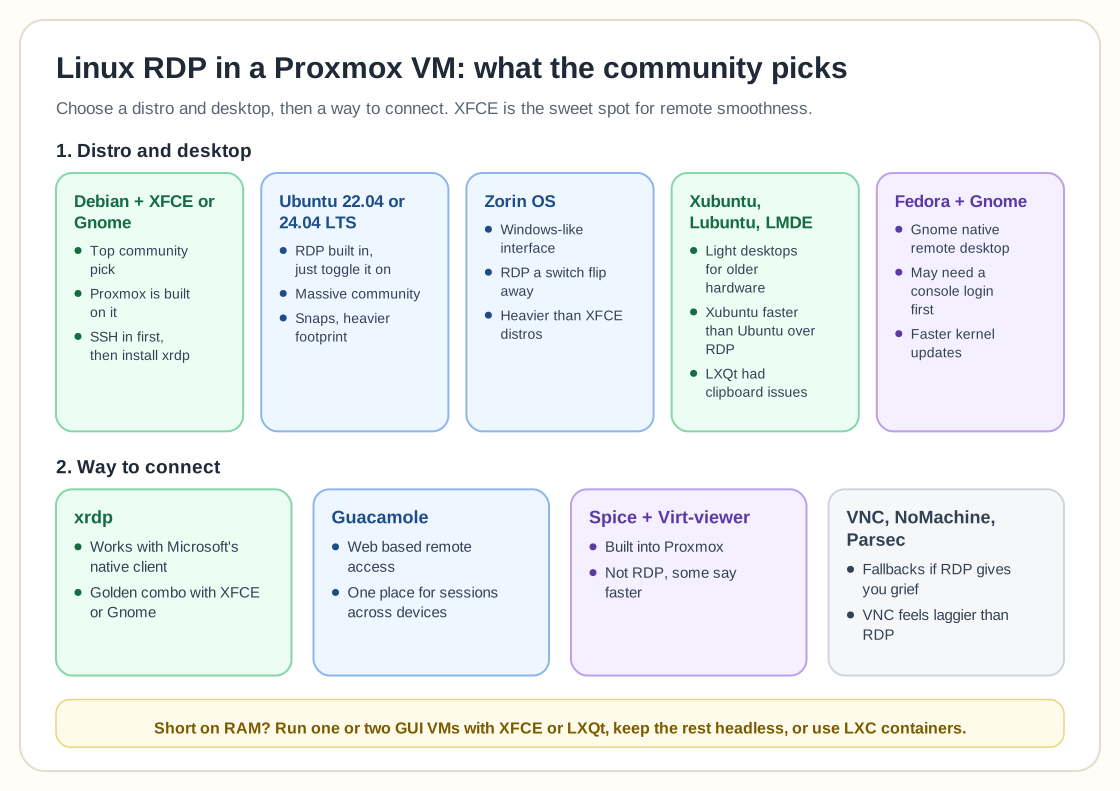
Debian with XFCE or Gnome
Debian is by far the community's top recommendation. Proxmox is built on it, so updates and compatibility naturally line up. Add XFCE for a lightweight desktop or Gnome for something more modern, and you've got a solid base. One tip from seasoned users: avoid logging into the GUI directly after install. Instead, SSH in, install xrdp, and configure your display settings properly, which avoids headaches with screen resolution and session issues.
As a bonus, XFCE plays nice with RDP, and Gnome supports Microsoft's RDP natively via Wayland.
Ubuntu (22.04 or 24.04 LTS)
Ubuntu gets a lot of love and some hate, but for ease of use for beginners it's hard to beat. It has RDP functionality right out of the box (just toggle it on), and tools like Remmina or even the Microsoft Remote Desktop app on macOS can hook into it without fuss.
Ubuntu is essentially Debian with extra polish plus a massive community, so if you Google an issue, chances are you'll find a fix within the first two search results. Just beware of Snap packages and a slightly heavier footprint compared to minimal Debian installs.
Zorin OS
Several folks swear by Zorin, especially newer users. It's Debian-based, comes with a Windows-like interface, and has RDP built in, only a switch flip away. That makes it a good fit for anyone who doesn't want to touch the terminal unless they absolutely have to. It's heavier than XFCE-based distros, but it's smoother out of the box.
Xubuntu, Lubuntu, and Linux Mint (LMDE)
These are Ubuntu derivatives with lighter desktop environments. Xubuntu (with XFCE) and Lubuntu (with LXQt) are snappy even on older hardware. Linux Mint, particularly the Debian Edition (LMDE), gives you a Minty-fresh UI with Debian underpinnings and good RDP compatibility.
One user mentioned that running Xubuntu via RDP was way faster than vanilla Ubuntu. Another noted LXQt had clipboard issues under RDP, so XFCE seems to be the sweet spot for remote smoothness.
Fedora with Gnome
One surprise mention was Fedora. It supports RDP through GNOME's native remote desktop tools, though you might need to be logged into the console first before RDP kicks in. It's a little more bleeding edge than Debian/Ubuntu, so expect faster kernel updates, which is good for hardware support and possibly bad if stability is your #1 concern.
How RDP performance holds up
RDP on Linux isn't always the plug-and-play magic it is on Windows. Users report mixed results depending on DE, distro, and how the RDP stack is implemented. These are the setups that work:
- XRDP with XFCE or Gnome is the golden combo for most people.
- Using
xrdpfrom the terminal gives you RDP access with Microsoft's native client. - Guacamole, a web-based remote access tool, is popular among users who want to consolidate remote sessions across devices without juggling different apps.
- Spice with Virt-viewer is Proxmox's built-in remote display protocol. It isn't quite RDP, but some users say it's even faster, with better multimedia support (yes, including YouTube).
One smart workaround is Cockpit, a lightweight browser-based GUI for managing Linux servers. It's not a full desktop, but it gives you system info, terminal access, Docker management, and more, all in a web interface.
Why not just use VNC?
Some folks chimed in suggesting VNC, but the consensus is that RDP just feels smoother. It adapts to screen resolutions better, supports sound (sometimes), and performs better over slow links. VNC, by comparison, feels more like watching a laggy, clunky screen recording. Meh.
That said, if RDP gives you grief, VNC or tools like NoMachine or Parsec are solid fallback options.
Lightweight matters: don't blow your RAM budget
Everyone agrees you don't need GNOME or KDE on every VM. Most users only run one or two GUI-enabled Linux VMs for general tasks like web browsing or admin work. The rest (Docker containers, file servers, or media centers) run headless with SSH access.
If you're juggling multiple VMs on 32GB RAM and a 4-core CPU, go with XFCE or LXQt, or skip the GUI unless it's necessary.
Want even less overhead? Try LXC containers in Proxmox instead of full VMs. They're faster, leaner, and better for services that don't need a full OS shell.
Tips to make your setup smooth
- Install
qemu-guest-agentin every VM for better integration with Proxmox (shutdowns, IP reporting, etc.). - Snapshot your VMs before major updates or DE changes.
- Use templates to quickly spin up fresh Linux boxes with your favorite settings baked in.
- Practice the CLI gradually, without jumping in at the deep end. Start by editing text files, checking system logs, or installing packages.
One user put it best: "I just wanted to remote in and surf the web. Two months later, I'm writing bash scripts and hosting my own Nextcloud."
Final word: RDP is training wheels
If you're new to Linux, don't feel bad about starting with a GUI. Everyone does. Many users eventually find themselves popping open a terminal window even inside a desktop session, because it's faster, lighter, and (dare we say) kind of fun once you get the hang of it.
Still, a good GUI with RDP access is the perfect gateway drug to deeper Linux exploration. Whether you land on Debian XFCE, Ubuntu, Zorin, or something in between, you're not stuck with Windows anymore, and the options keep getting better.