

Proxmox SSD Disappearing After Reboot: Troubleshooting Guide
You know it's a bad sign when your Proxmox server ghosts you midweek and its NVMe SSD shows no sign of life afterward. Worse, you're thousands of miles away from your rig, and the usual fix, a reboot, falls flat. Welcome to the latest anxiety-inducing chapter of homelab horror stories: the case of the disappearing SSD in Proxmox.
This happened for real. A user recently shared their troubles with a Dell T5810 server running Proxmox with a PCIe NVMe card. Three of the four slots were populated, and one important drive kept mysteriously dropping out. Naturally it was the one holding the VMs and LXC containers, the heart of the operation, and it was just… gone.
The issue turns out to be a lot more common than it should be, and the community had plenty to say about why it happens and how to fix it.
The setup was fine until it wasn't
Everything started off clean: a fresh server build, Proxmox humming, and three NVMe drives in action. Then the main storage SSD started randomly vanishing. Once could be a fluke, and twice gets eyebrows raised. Now, after being offline for several days, not even a standard restart brings it back. The only "solution" so far is a full shutdown where you pull the plug and reconnect power, and poof, it's back.
Until it happens again.
That's where things get murky. Is it a software issue, a failing SSD, a power delivery problem, or something sneakier going on with PCIe lanes and oversaturation?
Step one: check the obvious (and the not-so-obvious)
1. Bad drive? Maybe
Multiple folks suggested the first line of defense: check whether the SSD itself is just dying. Run smartctl diagnostics and look for wear-level indicators. You'd be surprised how quickly commercial SSDs can burn out under heavy virtualization workloads, and Proxmox, especially with ZFS, is notorious for shredding consumer-grade flash storage.
The poster clarified that they're using a Fanxiang 1TB NVMe. It isn't enterprise-grade, but it isn't a totally off-brand drive either. One commenter reported solid results with multiple Fanxiang S880s, which suggests the drive itself might not be the villain here.
Still, wear happens. If you're seeing 90% wear on your drive after just a year or two, that's a red flag waving at full mast.
2. ASPM settings and PCIe quirks
Another user suggested toggling ASPM (Active State Power Management) in the BIOS. It turns out ASPM can cause connectivity issues with certain SSDs when power management kicks in. It sounds like low-level tinkering, but if you're running a PCIe expansion card and only one drive keeps dropping, this might just fix it.
And yes, ASPM can affect only one of the SSDs on a multi-slot card, since it doesn't work as an all-or-nothing setting. Different drives, even on the same card, can react differently to BIOS-level power controls.
3. Oversaturated PCIe bus
One user had a similar disappearing act that ended when they yanked out one of their four add-in cards. Too many PCIe devices (GPUs, network cards, NVMe arrays) can crowd your lanes and starve some of them, especially on a platform that wasn't designed for heavy expansion.
Running two GPUs and a NIC along with an NVMe adapter? That might be pushing it. Pull a GPU and see what happens. If the ghosting drive suddenly reappears and stays solid, you've just solved a bandwidth problem disguised as a hardware failure.
Other suspects in the lineup
Loose PCIe card
It isn't always high-tech. One person found their PCIe card simply wasn't seated properly. Vibration, travel, or thermal expansion can wiggle a card loose over time. Reseating the card and SSDs by fully unplugging and replugging them might be boring, but it often works. Add some proper cable management or a bracket to keep the card steady, especially in vertically mounted configurations.
Bad cooling
Yes, seriously. SSDs or cards that overheat without proper airflow can throttle, disconnect, or vanish outright under load. One user fixed repeated dropouts by aiming a simple fan directly at their NVMe card, and that was all it took: a $10 USB fan doing what BIOS updates and firmware patches couldn't.
PSU and power rail issues
Power delivery is the curveball. If you're splitting power cables between GPUs and SSDs, you might be overloading a rail or causing voltage instability. One guy fixed his issue simply by running separate power cables to each 8-pin GPU connector, which seems obvious in hindsight but made all the difference.
The fixes that actually worked
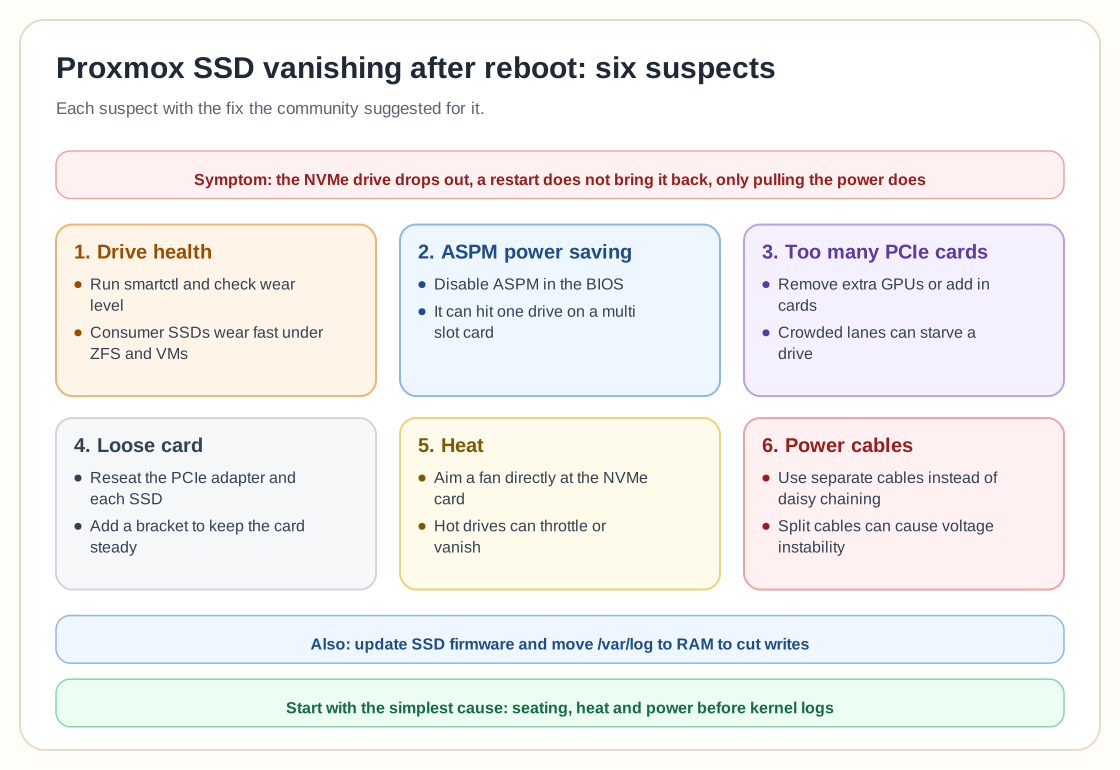
So what can you do when you're stuck in this Proxmox limbo?
- Update the SSD firmware. If your model has known bugs (Samsung 990 Pro, we're looking at you), a firmware patch might fix random disconnects.
- Check the card seating by reseating the PCIe NVMe adapter and each drive.
- Tweak BIOS settings: disable ASPM or try different PCIe slot configurations.
- Drop extra cards to free up PCIe bandwidth, removing unused or secondary expansion cards.
- Cool it down with a fan blowing directly on the PCIe NVMe adapter.
- Swap the power cables and use separate GPU cables instead of daisy-chaining.
- Mount logs to RAM. If Proxmox is writing constantly to the SSDs, move /var/log to tmpfs to reduce write cycles.
- Check drive health with smartctl and other tools that monitor SSD wear and performance stats.
Final thoughts from the homelab trenches
This disappearing SSD issue is part hardware, part power, and part software, which is classic homelab chaos. The more complex your setup, the more points of failure sneak in. As usual, though, the community pulled through with a grab bag of troubleshooting tips ranging from the obvious to the obscure.
The biggest lesson is to assume the simplest cause first. Finding a loose card, a heat problem, or a power delivery quirk might save you hours of reading debug logs and digging through kernel messages.
Also, keep spares, monitor your drives regularly, and if you're running anything mission critical on non-enterprise SSDs... maybe rethink that. At the very least, have a backup plan that doesn't involve a 12-hour flight home just to reseat a card.