

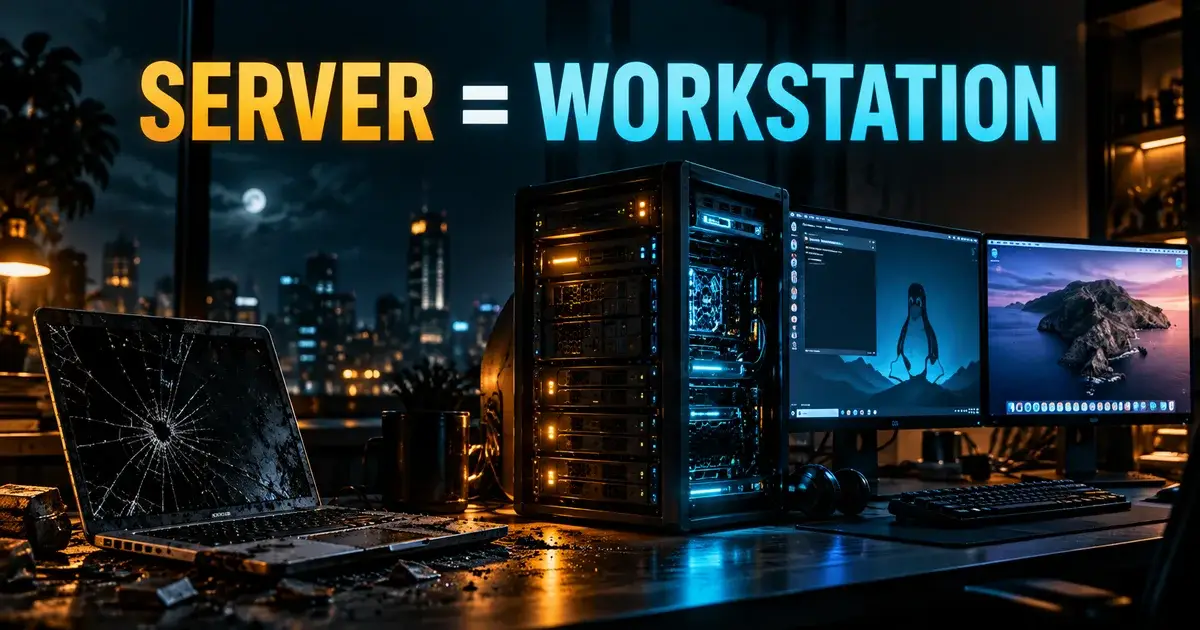
His Laptop Died. So He Turned a Proxmox Server Into a Workstation—and Booted macOS Too.
You can use Proxmox VE as the host for a daily desktop by assigning a physical GPU to a virtual machine, but the arrangement comes with display and recovery tradeoffs. One operator replaced a failed laptop with an Arch Linux guest while also running a macOS Tahoe VM for CI/CD tasks.
The details matter more than the stunt: a black Proxmox NoVNC screen need not mean the guest has crashed, the macOS guest was not the operator’s primary graphical desktop, and the underlying storage was a single 512 GB NVMe device.
Can Proxmox replace a broken desktop or laptop?
A Proxmox host can run a desktop VM with GPU passthrough, but it does not recreate a conventional laptop’s mobility or recovery path.
The appeal starts with a very ordinary failure. A laptop died, and its owner did not describe replacing it with another laptop. Instead, the existing Proxmox host was pressed into service as a workstation. Arch Linux became the usable desktop environment; GPU passthrough made the virtual machine capable of talking directly to graphics hardware. At the same time, macOS Tahoe remained available as a separate guest.
That's an unusually flexible way to respond to a broken computer. A conventional desktop generally asks the user to choose an operating system at boot, or to run a secondary system through ordinary desktop virtualization. Here, the hypervisor stays in control. Each guest has a distinct job, and neither has to become the host operating system. For someone who already administers VMs, the idea is hardly alien. For someone whose daily work depends on a predictable desktop, it's a much bigger leap.
A commenter who had just reinstalled Proxmox after an SSD swap wanted to add Linux and Windows desktop VMs. Another had a damaged Tuxedo laptop that might eventually become a server. Neither story proves that virtualized desktops are a better default; both show how readily homelab owners repurpose hardware.
But this arrangement changes what happens when the host needs maintenance. Rebooting Proxmox can interrupt a working session as well as the services it hosts. A storage issue no longer affects only a server; it can take away the user's desktop too. The convenience of consolidating machines comes with a new dependency. The laptop problem may be solved, but the stakes of a host failure have risen.
Why does NoVNC show a black screen with GPU passthrough?
After full GPU passthrough, guest video may appear on the physical GPU output rather than in Proxmox’s emulated NoVNC console.
GPU passthrough sounds straightforward until someone opens Proxmox's browser console and sees nothing. One participant asked for a tutorial, remembering a black screen from an earlier deployment. Another assumed that using a desktop VM would always require a second computer to access it. That assumption was understandable, and the replies worked through the distinction.
For the device-assignment basics, see this GPU passthrough troubleshooting case, which explains why firmware and guest display settings matter.
With PCIe passthrough, a guest can take control of a physical graphics card. Its video output may then be sent directly to a monitor connected to that card, instead of appearing inside the hypervisor's built-in viewer. As the Proxmox PCI passthrough documentation explains, the passed-through GPU's framebuffer isn't displayed through NoVNC or SPICE. A black console is therefore not, by itself, proof that the guest failed to boot.
That detail matters because the two access methods create quite different experiences. A VM controlled over remote desktop is still useful, but the user needs a client device and a working network path. A VM driving an attached physical monitor can feel much more like a conventional workstation. A commenter described connecting a monitor directly to the GPU, while another said their own Proxmox workstation uses a cheap graphics card for the host and an RTX 3060 for gaming. They also noted that a single-GPU passthrough arrangement can work, though it may leave the host without its usual local graphical output once the guest takes over.
Passthrough still requires compatible hardware, IOMMU configuration, guest drivers, and a plan for assigning the GPU. The host generally can't use a card while that card is exclusively passed through to a guest. Input devices and recovery access need planning too.
The key correction: a physically attached screen can serve the passed-through guest directly. A server can become the computer on the desk even while Proxmox's web console looks empty.
There is still a catch: if something goes wrong with passthrough, the simplest rescue path may be a separate management device or an alternative console. An experiment becomes less charming when the machine needed to repair your workstation is your workstation. Anyone depending on such a setup should plan how to regain control before the graphics configuration breaks.
Can macOS Tahoe run alongside an Arch Linux VM?
The reported setup ran macOS Tahoe as a separate VM for CI/CD, although licensing and Apple-hardware restrictions remain a major constraint.
The Arch desktop explained how the owner could keep working. The macOS Tahoe guest generated a different kind of curiosity. Several people wanted to know how it had been installed. One had tried Tahoe without success. Another was surprised that macOS could run as a Proxmox VM at all. Questions turned to Apple services, graphics acceleration, and whether an upcoming macOS release would make the whole approach obsolete.
The owner pointed to a third-party Proxmox macOS installation guide they said had worked for them. They also mentioned post-install changes to get Apple ID working, including patches and an auxiliary configuration tool. Those are reports from one working setup, rather than a tested recipe for every host. Even the guide's title calls the system “Tahoma,” while Apple's actual release name is Tahoe. That alone is reason to check versions and commands carefully instead of copying an installation sequence on faith.
A useful clarification followed when someone asked about Tahoe's performance. Another participant said their own guest, using an AMD Radeon RX 6800 XT, 64 GB of RAM, and 16 cores, was usable but could be smoother. The original owner answered that their GTX 1650 was not supported for the macOS window manager. Crucially, they weren't depending on that guest as a polished desktop: the macOS VM existed for CI/CD pipelines. In other words, “it runs” and “it makes a good everyday Mac workstation” were never the same claim.
One commenter asked about iMessage; another said their own Sequoia and Tahoe VMs connected to iCloud successfully. The owner needed additional setup for Apple ID. These experiences don't guarantee Apple-service compatibility across hosts or future updates.
There is a more fundamental limit. Apple's macOS Tahoe software license permits specified macOS virtualization uses on Apple-branded computers. Successfully booting macOS on a generic non-Apple Proxmox host is therefore different from having permission under Apple's standard license to run it there. Readers considering macOS for commercial build pipelines need to check the license and use compliant infrastructure rather than treating a hobbyist success story as legal clearance.
The community also noticed the clock ticking on Intel compatibility. The owner worried that Tahoe might be the end of the road for their setup, and Apple has confirmed that Tahoe is the final major macOS release for Intel-based Macs. That doesn't prove an existing Tahoe guest will stop functioning. It does mean an Intel-oriented workaround has a more limited upgrade path than the screenshot might suggest.
Should you trust one Proxmox host as your workstation?
Use this arrangement only when you have a separate management path, backups and a clear response to storage or host failure.
Near the end of the exchange, the conversation turned from impressive virtualization to an unglamorous topic: storage. The owner said everything sat on a 512 GB NVMe drive bought when the machine was built roughly four years earlier. They joked that replacing a failed drive or faulty RAM would be financially painful. The humor landed because the risk was real enough to recognize.
A workstation also needs a tested backup and recovery plan, particularly if the host and desktop share a single storage device.
A single drive doesn't automatically mean data loss, and the discussion didn't establish whether backups existed. Still, a desktop VM, a build environment, and whatever other services share that host can all inherit the same physical failure point. A snapshot on the same disk cannot protect against losing the disk. A sensible design separates recoverable VM state from irreplaceable working files, exports backups to other storage, and tests whether a replacement system can actually boot the guests.
There were no comparative benchmarks proving the workstation beats a native Arch installation, no complete hardware inventory, and no demonstration that the macOS VM will survive the next platform transition. This was one person's working setup, supported by several other operators' experiences.
That is enough to make the story worth telling. A laptop died. A server was already there. An Arch Linux VM took over the desktop role, while a macOS guest stayed available for a specific development task. People who once thought GPU passthrough meant staring at a black browser console learned that the physical display could be the point. Others saw a clever system with too many responsibilities concentrated on one box.
Both reactions make sense. Proxmox makes it possible to treat hardware as a pool of capabilities instead of a computer assigned one permanent identity. That freedom can rescue a workday and stretch the useful life of equipment. It also makes recovery planning more important, because the machine that runs everything can interrupt everything.
The lesson isn't that everyone should replace a laptop with a hypervisor. It's that an improvised workstation can be genuinely practical, provided the owner understands which parts are supported, which are experiments, and what happens when the next component fails.
I would keep the Linux desktop as the main guest only if local display output and remote host management had been tested separately. For a laptop-dependent job or critical application, I would choose a conventional workstation and leave Proxmox to host the extra services.
Frequently Asked Questions
Can I use Proxmox as a workstation?
Yes. Proxmox VE can host a desktop virtual machine and pass a compatible physical GPU through to it. You need a usable display or remote-access path and a way to manage the host when the guest fails.
Why is the Proxmox console black after GPU passthrough?
A VM using a passed-through physical GPU may draw its desktop on a monitor connected to that GPU instead of Proxmox NoVNC. A black browser console is not, by itself, proof the VM stopped running.
Can I legally virtualize macOS Tahoe on any server?
No. Apple’s macOS Tahoe license limits virtualization to Apple-branded hardware under its stated conditions. Technical boot success on non-Apple hardware does not remove that restriction.