


How Proxmox Host CPU Mode Slowed an Entire Windows RDS Server
When everything looks fine but users say it's slow
Setting the Proxmox CPU type to host is common advice, and on one Windows RDS server it quietly made everything slower. The most unsettling performance issues are the ones that don't show up in metrics. CPU usage looks fine, memory isn't under pressure, and monitoring dashboards stay calm, yet users keep complaining that something feels off.
That's exactly what happened in one production environment running a Windows RDS server for roughly a dozen users on a Xeon E5-2650 v3 system. On paper, nothing suggested a crisis. CPU utilization hovered around 16 percent and memory around 37 percent, and even synthetic benchmarks barely moved the needle. The human side of the system told a different story: sessions felt laggy, applications hesitated, and small tasks felt heavier than they should.
The surprise came later. The culprit turned out to be a CPU mode that many guides casually recommend, "host," rather than hardware capacity or bad configuration in the usual sense. In this case that single setting triggered a chain reaction that sharply increased memory latency inside the Windows virtual machine. Memory access jumped from roughly 100 nanoseconds to about 2000 nanoseconds, a subtle change that hurt a lot.
The "host" CPU mode that looked like the best option
In virtualization environments, the CPU type presented to a virtual machine matters more than many administrators expect. Platforms like Proxmox let you choose between several CPU models, including generic ones such as x86-64-v3, or pass the host CPU directly to the VM.
On the surface, "host" seems like the obvious choice. It exposes the full capabilities of the physical processor to the virtual machine, and many guides frame it as the highest-performance option. If you don't care about live migration between nodes, it sounds almost like a free performance upgrade.
That assumption drove the configuration in this environment. The system had migrated from VMware earlier, where similar decisions felt safe, and the documentation nudged things in the same direction: if performance matters and migration isn't a priority, host mode often shows up in recommendations.
The host CPU setting also passes security-related CPU flags directly into the virtual machine, though, and that's where things got complicated. One engineer summarized the experience bluntly: following the official guidance plus common tutorials led to slower Windows virtual machines.
Windows saw the CPU flags and turned on every mitigation
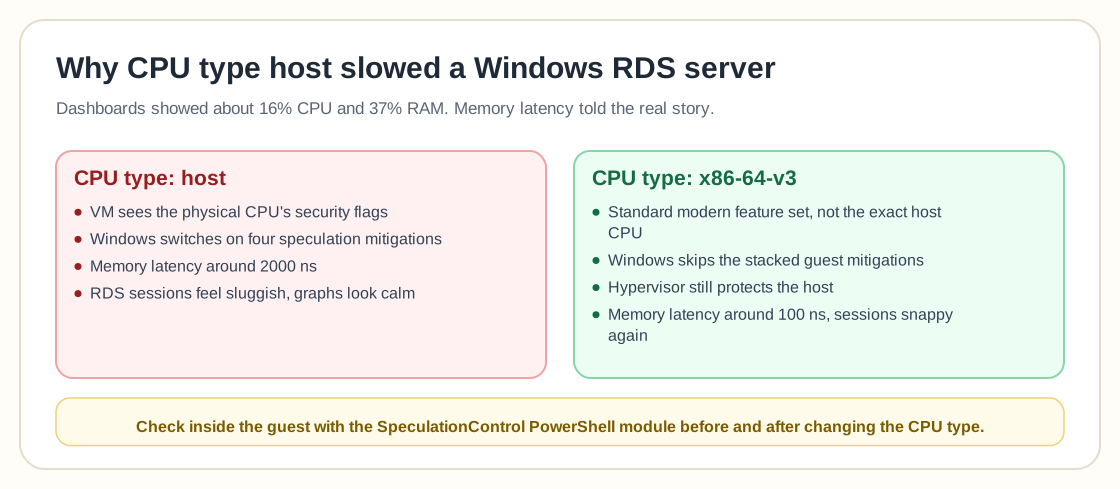
The root of the issue lies in how modern operating systems respond to CPU vulnerabilities. Over the last decade, hardware flaws like Spectre and Meltdown forced operating systems to implement heavy mitigations to protect memory isolation.
When a VM uses host CPU mode, it inherits the same CPU flags that the physical hardware exposes. Windows sees those flags and assumes it must enable several security mitigations at the operating system level, and that decision has consequences.
In the case that triggered this investigation, four different speculation-related mitigations were active inside the Windows VM. The team verified this with the SpeculationControl PowerShell module. When they switched to a different CPU model, x86-64-v3, those mitigations were no longer triggered in the same way.
Security didn't actually disappear, because the hypervisor layer still provided protection. Windows simply stopped applying additional layers of mitigation that had been slowing memory operations badly.
One commenter put it in a way that resonated with many administrators: there was nothing mysterious about it, just the interaction between Windows and the exposed hardware capabilities.
The invisible cost: memory latency explodes
Performance problems usually show up in graphs. This one hid between the numbers.
Monitoring tools like Grafana showed no alarming spikes. CPU wasn't maxed out, RAM usage stayed stable, and traditional performance dashboards suggested everything was working as expected. Once the CPU mode changed, though, the difference was obvious almost immediately. Users stopped complaining, remote sessions felt responsive again, and applications behaved normally.
What changed was memory latency. Instead of roughly 100 nanoseconds per access, the system had been hitting delays around 2000 nanoseconds under the mitigation-heavy configuration. That difference is massive for workloads that constantly touch memory.
Remote Desktop environments are particularly sensitive to these delays. Many small operations, such as UI updates, application interactions and session handling, depend on fast memory access. Even with CPU utilization staying low, latency at the memory level can drag the whole experience down without anyone noticing why.
Oddly, traditional benchmarks didn't clearly capture the problem. Day-to-day user experience exposed it far more effectively than synthetic tests.
Not everyone agrees on the root cause
As with many infrastructure topics, the discussion quickly split into several viewpoints.
One group argued that the behavior is well known and that the fault lies with Windows rather than Proxmox. The operating system enforces security protections aggressively and no longer lets administrators disable them easily when the hardware appears vulnerable. Linux environments offer more flexibility, which is why host CPU mode often performs better there.
Another perspective focused on configuration age. Some administrators said many guides floating around today are outdated and recommend settings that made sense years ago but no longer reflect modern virtualization practice. In their view, the correct approach is proper CPU masking tailored to the cluster architecture instead of blindly selecting host mode.
A third viewpoint pointed out that the severity depends heavily on the physical CPU. Some processors include hardware fixes for vulnerabilities that reduce or eliminate the need for costly mitigations, and in those environments host CPU mode might not produce the same dramatic slowdown. So the issue isn't universal, but when it appears, it can be devastating.
Legacy hardware, legacy configurations and migration surprises
Legacy virtualization setups add another layer to the story.
The environment with the slowdown was still running the i440fx machine type with SeaBIOS, a configuration that often turns up after migrations from older VMware setups. It works, but i440fx is an older PCI architecture compared with the more modern Q35 platform.
Engineers pointed out that i440fx can become a bottleneck when workloads rely on high-bandwidth devices like NVMe drives, 10-gigabit networking, or USB 3.x subsystems. Q35, which uses PCIe internally, is generally considered the modern baseline for new deployments.
Migrating to Q35 and OVMF firmware was already on the roadmap for the team managing the affected server, but the CPU configuration issue surfaced before that transition happened.
Switching CPU types had another side effect: Windows sometimes displayed a generic "QEMU Virtual CPU version 2.5+" instead of the real processor name. It was mostly cosmetic, but it showed how much abstraction sits between the physical hardware and the virtual environment, and how those abstractions occasionally behave in surprising ways.
The practical fix: a less obvious CPU model
The eventual fix was surprisingly simple. Instead of host CPU mode, the team switched the virtual machine to the x86-64-v3 CPU model, which exposes a modern but standardized set of CPU features rather than mirroring the exact host processor.
That change kept Windows from activating the same heavy security mitigations. Memory latency dropped dramatically, and user experience improved almost instantly.
Host CPU mode isn't always bad. In some clusters, especially homogeneous ones where migration isn't required, it can still make sense. Blindly assuming it's the fastest option can lead to unpleasant surprises, though. In environments running Windows workloads, especially RDS servers or other latency-sensitive applications, the CPU model can influence performance in ways that aren't immediately obvious.
A small setting with big consequences
Virtualization is full of settings that look minor until they aren't. CPU type selection sits unnoticed in configuration menus, often left unchanged once a VM is created, and many administrators rarely revisit it after initial deployment. Yet this case shows how deeply that single parameter can shape system behavior. It can affect security flags, trigger operating system mitigations, and multiply memory latency without any warning.
Worst of all, the resulting slowdown may not appear in monitoring dashboards. It shows up in human feedback instead, in vague complaints from users who can't explain exactly what feels wrong, only that the system is slower than it should be.
Here, a simple CPU model change restored responsiveness without adding hardware or rewriting applications. Sometimes the biggest performance win comes from noticing that the infrastructure you already have is accidentally working against itself.